
Setting up your subscription on iPhone and iPad — step by step
On iPhone and iPad, setup takes minutes: an app from the App Store, details pasted from Notes, and two features only Apple offers — picture-in-picture and AirPlay to the big screen. This guide covers all of it and keeps mobile data use in check.
Before you start
Server URL, username and password (Xtream Codes) or an M3U link — sent after payment. Paste them from our message instead of typing character by character.
Wi-Fi for the first install and long viewing; on mobile data set the quality to medium or high.
Settings › General › Software Update. Updates fix many playback problems.
The steps
- Install the app from the App Store
Search for a player that supports Xtream Codes or M3U and install it. Message us and we confirm the player currently available in your country.
- Enter your subscription details
Copy the server URL, username and password from our message and paste them into the app — instead of typing character by character. Choose Xtream Codes as the sign-in method.
- Wait for the channels to load
The first load can take a minute. Then play a channel to confirm.
- Turn on picture-in-picture
Settings › General › Picture in Picture › Start PiP Automatically. During playback, swipe up to leave the app and the channel continues in a small window.
- Send it to the big screen (optional)
From Control Centre choose AirPlay and select an Apple TV or an AirPlay-capable TV. For everyday use, install the app on the Apple TV itself.
Also supported players
If you prefer a player from your device’s store instead of our official apps: install one of these players, send us the MAC it shows on first open, and we activate your subscription on it. These are third-party players; their availability depends on your device’s system and your country, and we do not own them nor does our plan include their licences.
On mobile data
Medium quality usually uses under a gigabyte per hour, and high definition roughly one to three. Set the quality manually before playing on mobile data, and watch the usage in the phone’s settings after the first match.
After the first channel plays
On mobile data choose medium or high quality; 4K on a small screen spends data for little visible gain.
In the system settings, so the channel keeps playing in a small window while you use other apps.
Add your channels to favourites so they open in one press on match day.
Common problems on this device
Make sure picture-in-picture is on in the settings and that the app supports it; some apps also need it turned on in their own settings.
Move the phone closer to the router, turn on Do Not Disturb while watching, or install the app directly on the Apple TV.
Close the app fully and reopen it on Wi-Fi. If it persists, delete and reinstall it, then paste the details again.
Frequently asked questions
Does the subscription work on iPhone?
Yes, through a compatible player from the App Store; viewing starts within minutes of entering the details.
Can I watch on the big screen from my iPhone?
Yes, through AirPlay to an Apple TV or an AirPlay-capable TV. For everyday use, install the app on the Apple TV.
The app opens but there are no channels — why?
Usually an extra space or a missing character in the server URL or username, or an expired subscription. Paste the details from our message again; if it persists, message us with the app and device.
How much mobile data does viewing use?
Roughly under a gigabyte per hour at medium quality and one to three at high definition — it varies by source and app.
How many devices can I use?
We help you set up on two devices, with playback on one device at a time. If you need more than one screen, ask before ordering.
Menu and setting names differ slightly between versions and models, and app availability in the stores varies by country. Picture quality and stability depend on the source, your device and your connection speed. If you cannot find an option mentioned here, message us on WhatsApp with your model.
Ready to set up on iPhone & iPad?
Pick the subscription length that suits you and we set it up with you step by step — or ask first.
Viewing guides for this device
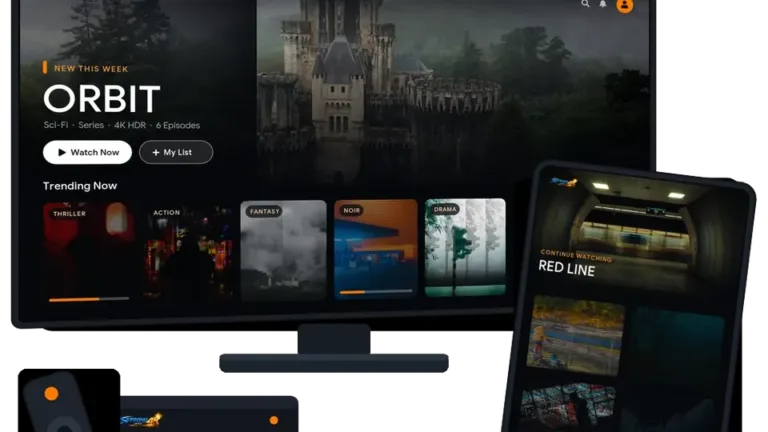 Setup guideSetting up your subscription on iPhone, iPad and Apple TV — a step-by-step guide
 Travel guideWatching while travelling: phone, mobile data and hotel Wi-Fi without surprises
 Viewing guideWatching La Liga and El Clásico in high quality on your screen — a match-night guide
 Viewing guideWatching the AFC Champions League Elite on your screen in high quality — a match-night guide