Family viewing: kids’ lists, a PIN lock, and channels organised for everyone at home
One screen in the living room and different tastes: the children want cartoons, the adults want matches and series, and everyone wants to find what they want in one press. This guide covers how to organise the player app for the whole family: favourites lists for each person, a PIN lock for unsuitable content, and channels arranged so nobody gets lost in the list.
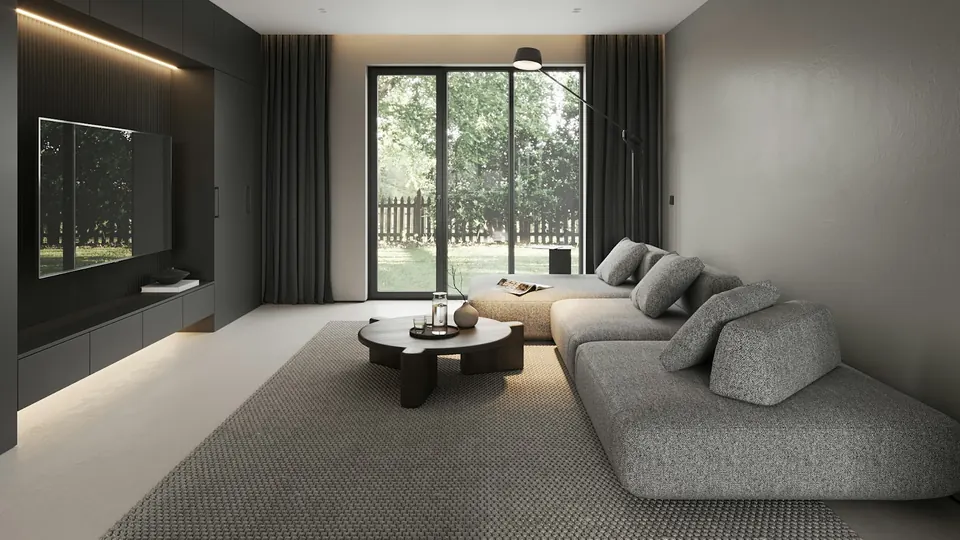
Why a household needs different organisation from one person
When one person uses the app, the full list does not bother them. But at home a child opens the app alone, a grandmother wants her usual channel, and you want the match quickly before kick-off. A long, unorganised channel list means time lost navigating and content that may not suit every age within everyone’s reach. Many player apps offer simple tools that solve all of this: favourites lists that can be named after each person, a PIN lock on specific categories or channels, and hiding what the family does not need at all. The setup takes half an hour once and saves trouble every day.
Three tools found in most apps
- Favourites: a short list of the channels you actually watch, shown at the front. Many apps allow more than one list — one for the children, one for sport, one for the family.
- Parental lock: a PIN requested before opening specific categories or channels. Choose a number the children do not know and cannot easily guess, and change it if they find out.
- Hidden categories: many categories the family never needs; hiding them shortens the list and makes navigation faster for everyone.
The children’s device and the adults’ device
If the children watch on their own tablet or TV, the simplest setup on their device is the children’s list alone, with the lock on everything else. The shared living-room screen needs the three lists with the lock on what does not suit the young ones. Remember that playback is on one device at a time — if the family needs two screens at once, ask before ordering.
Children’s content: what makes it suitable?
Not everything animated suits every age, and age ratings differ from country to country. Sit with the children in the first days and add what you consider suitable to their list yourself, instead of leaving them to browse the full list. Over time their list becomes their own library, one they know and trust.
Steps to organise the app for the family
- Start with the family list
Open the app on the living-room screen and add to favourites the channels you actually watch together: news, general channels, family series. This is the default list that shows when the app opens.
- Create the children’s list
If the app supports more than one list, create one named for the children and add the cartoon and educational channels you have reviewed yourself. Teach the children how to open their list directly.
- Turn on the PIN lock
In the app’s settings, turn on the parental lock, choose a PIN, and apply it to the categories and channels that do not suit the young ones. Make sure the lock is requested every time, not once per session.
- Hide what you do not need
In the category or channel settings, hide the categories the family never watches. A shorter list means faster navigation for everyone.
- Test it through a child’s eyes
Open the app the way a child would: is their list at the front? Does the lock work on the other categories? Can they get back to their list easily if they leave it? Adjust until the answer is yes.
The right internet speed for a home watching on more than one device
We suggest 15 Mbps for high definition and 30 Mbps for 4K channels, at the viewing device. In a home with many devices on the same network — phones, games, downloads — count on viewing needing that speed on top of what the others use, and measure it on the viewing device itself at evening peak time.
Family setup checklist
- A family favourites list that shows by default when the app opens.
- A children’s list you have reviewed yourself, which they know how to open.
- A PIN lock on unsuitable categories and channels, requested every time.
- Categories the family does not need hidden to shorten the list.
- The PIN kept where the children cannot reach it, and changed if discovered.
- Keep your subscription details private; never share them in public groups.
Fixing the common problems in a family setup
Use the single list for the children on their device and the family list on the living-room screen, or message us to recommend an app that supports multiple lists on your device.
Change it immediately in the app’s settings, and choose a number not tied to a birthday or phone number. Some apps allow hiding categories entirely instead of locking them — which is safer.
In the app’s settings, choose the favourites list as the start list where the option exists. If not, pin the list in the first row so everyone reaches it in one press.
Restart the device and delete lists that are not used. Older models have limited memory, and short lists are faster.
Family viewing — frequently asked questions
Can I lock channels that are unsuitable for children?
Yes, in most player apps, through a parental PIN lock on specific categories or channels, and some allow hiding categories entirely. See the steps in this guide.
Is there a dedicated children’s list?
You can create one yourself from favourites in the app and add the channels you have reviewed. Children’s channel availability varies by source and plan — ask before ordering if this matters most to you.
Can everyone watch on their own device at the same time?
We help you set up on two devices, with playback on one device at a time. If the family needs two screens at once, ask before ordering.
What internet speed suits a home with many devices?
15 Mbps for high definition and 30 Mbps for 4K at the viewing device itself, on top of what other devices use. Measure it on the TV at peak time.
How do I stop the children changing the settings?
Some apps allow locking the settings themselves with the PIN. If not available, keep the children’s list on their own device and the full settings on the living-room screen.
Does a family setup need a paid app?
The basic tools — favourites, lock and hiding — are available in many free apps. Message us with your device type and we will recommend what suits.
Channel and content availability varies by source and plan, and picture quality and stability depend on your device and connection speed. App names and settings menus differ between versions; if you cannot find an option mentioned here, message us on WhatsApp with your device model.
Ready for a screen that suits the whole household?
Pick the subscription length that suits you and we will help you set up the lists and the lock step by step.
Read next
 Subscriber guideIPTV subscription in the Netherlands: the complete guide before you buy — internet, devices and timing
 Seasonal guideRamadan 2027 series on your screen: getting the home ready for the biggest viewing season of the year
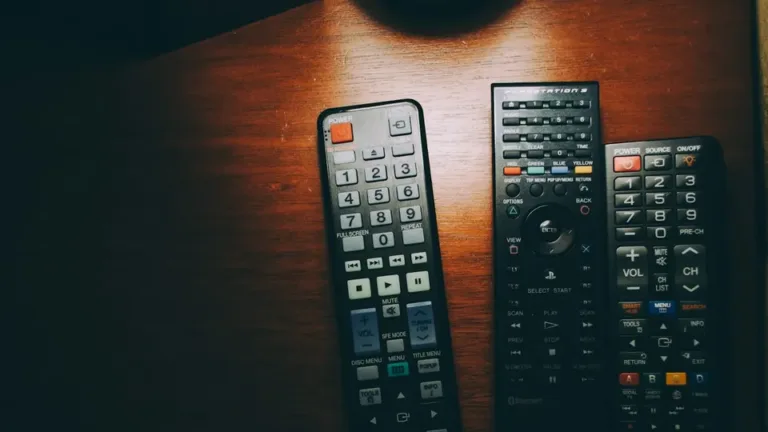 Choosing guideThe best IPTV app for a Smart TV and phone in 2026: choosing by your device, not by the adverts
 Viewing guideWatching films and series in 4K: what actually decides picture quality on your screen
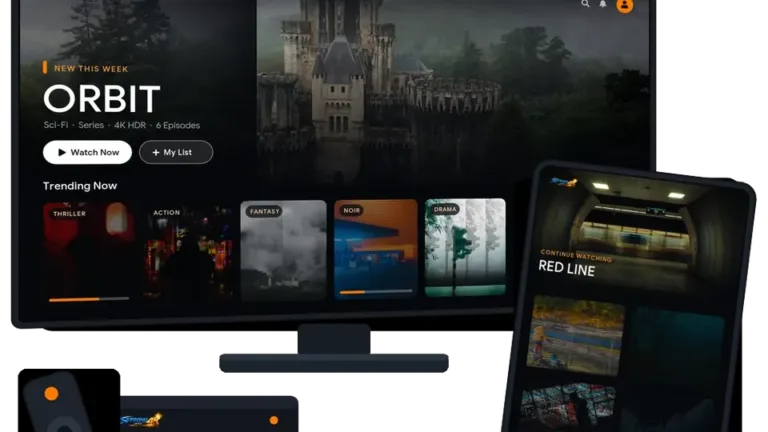 Setup guideSetting up your subscription on iPhone, iPad and Apple TV — a step-by-step guide
 Setup guideSetting up your subscription on a Samsung or LG Smart TV — a step-by-step guide