Setting up your subscription on a Samsung or LG Smart TV — a step-by-step guide
Most TVs in our homes are Samsung or LG, and each has its own operating system and an app store that is not Android. This guide covers how to run your subscription on a Samsung (Tizen) or LG (webOS) TV straight from the store, when a small external device is the better answer, and how to set the picture to get the best out of your screen.
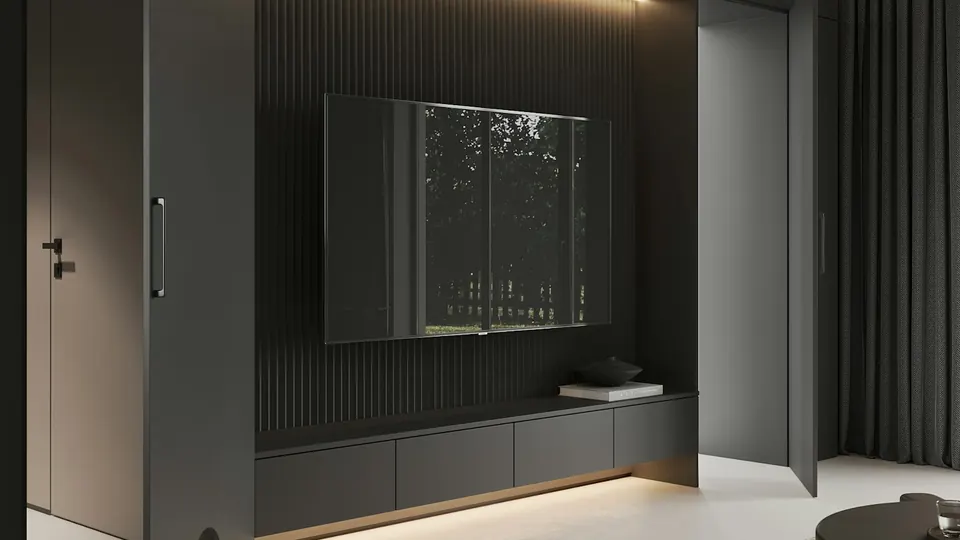
Why Samsung and LG TVs differ from Android devices
Samsung TVs run Tizen and LG TVs run webOS, and both have their own store that does not accept Android apps and does not allow installing files from outside the store. That means your choice is limited to the player apps available in the store itself, which vary by country and model year; older models may not have a suitable app at all. The good news is that when the app is available, setup is easier than on any other device: no cables, no extra boxes, one remote. The more important news is that an inexpensive external device turns any older TV into a full smart screen if the app is not there.
When an external device is the better answer
If your TV is more than a few years old, or you cannot find a compatible player in its store, or the available app is slow or limited, an external device such as a Fire TV Stick or an Android box plugged into an HDMI port gives you a wider store, more apps and faster updates. The external device uses the TV only as a screen, so you get the same quality with more flexibility — and this route is usually faster than forcing an unsuitable app to work.
Setting the picture on your screen
- Choose the Cinema or Filmmaker picture mode for films and series, and Sports or Standard for matches if the sports mode looks overdone.
- Reduce or turn off motion smoothing if fast shots look unnatural.
- Make sure the app is set to its highest quality and the connection can deliver it; the screen cannot improve a weak source.
- If the TV supports HDR, leave it on automatic and it will recognise suitable content when the source provides it.
Setup steps on Samsung and LG
- Samsung (Tizen): install from the store
Press Home on the remote, open Apps, search for a compatible player that supports playlists, and install it. After installing, pin the app to the first row of the home screen so it is one press away.
- LG (webOS): install from the store
Press Home, open the LG Content Store, search for a compatible player, and install it. From the app list you can drag it to the start of the bar so it sits at the front.
- Enter your subscription details
Open the app and enter the details you received after payment. Some apps show a short code that lets you enter the details from your phone through a web page — use it where offered; it is faster than typing with the remote and less error-prone.
- Confirm the connection
In the TV’s network settings, connect an Ethernet cable where you can, or choose the 5GHz Wi-Fi network. Test a channel at peak time before relying on the setup.
- The alternative: an external device over HDMI
If no suitable app is in the store, plug a Fire TV Stick or an Android box into an HDMI port, install the app from its store, and enter the same details. The TV becomes a display only, and quality is unaffected.
The right internet speed for a Smart TV
We suggest 15 Mbps for high definition and 30 Mbps for 4K channels. What matters is the speed that reaches the viewing device itself, not the figure on your internet contract. An Ethernet cable or 5GHz Wi-Fi gives the steadiest result.
Quick setup checklist
- Update the TV’s system from its settings before installing.
- Check that a compatible player is available in the TV’s store before ordering; if not, an external device is the answer.
- Connect an Ethernet cable where you can, or choose the 5GHz network.
- Use the short code or web page to enter details instead of typing with the remote, where the option exists.
- Test a channel at peak time, then set the picture mode that suits the content.
- Keep your subscription details private; never share them in public groups.
Fixing the common problems on Samsung and LG
App availability varies by country and model year. Look for another compatible player, or use an external device over HDMI. Message us with your TV model and we will recommend the best fit.
Close other apps running in the background, and restart the TV by unplugging it for a few seconds. Older models have limited memory, and an external device solves this for good.
Change the picture mode in the TV’s settings: Cinema for films and Standard for matches, and reduce motion smoothing. Base quality depends on the source and the connection.
Restart the app, then the TV, and confirm the connection in the network settings. If it persists, delete and reinstall the app — and message us if nothing changes.
Samsung and LG — frequently asked questions
Does the subscription work on a Samsung TV directly, without an extra device?
Yes, if a compatible player is available in the TV’s store, which it is on most recent models. If it is not there for your model, an external device over HDMI solves it.
Does it work on an LG TV?
Yes, through a compatible app from the LG Content Store on most recent models, in the same way. See the steps in this guide, and message us if you cannot find a suitable app.
My TV is old — what do I do?
An external device such as a Fire TV Stick or an Android box on an HDMI port turns it into a full smart screen with a wider store and faster updates; quality depends on the screen and the connection, not on the TV’s age.
How do I enter details without typing on the remote?
Some apps show a short code or a web page link that lets you enter the details from your phone. Use it where offered; otherwise type slowly and check each character before confirming.
How many devices can play at the same time?
We help you set up on two devices, with playback on one device at a time. If you need more than one screen, ask before ordering.
Is the quality on a Smart TV 4K?
Playback can reach 4K depending on the source, your screen and your connection speed. Set the app to its highest quality and make sure the connection delivers a steady 30 Mbps at the TV itself.
Channel and content availability varies by source and plan, and picture quality and stability depend on your device and connection speed. App names and settings menus differ between versions; if you cannot find an option mentioned here, message us on WhatsApp with your device model.
Ready to set up on your TV?
Pick the subscription length that suits you and we will walk you through the setup on Samsung or LG step by step — or recommend the right external device.
Read next
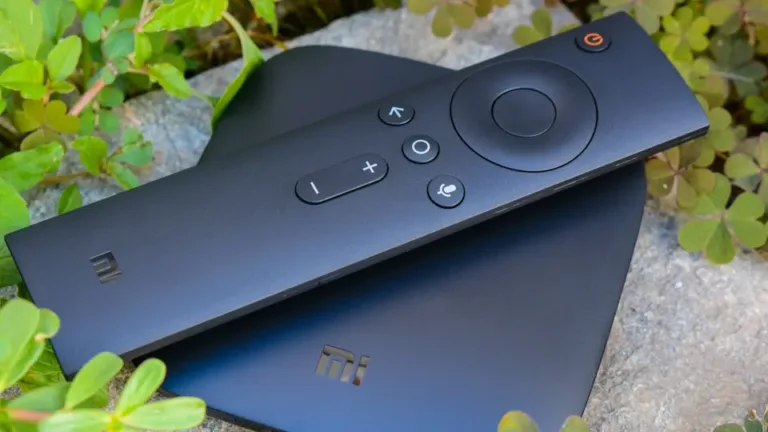 Buying guideFire TV Stick, Android box or Apple TV? Which external device to buy for your TV
 Choosing guideThe best IPTV app for a Smart TV and phone in 2026: choosing by your device, not by the adverts
 Viewing guideWatching films and series in 4K: what actually decides picture quality on your screen
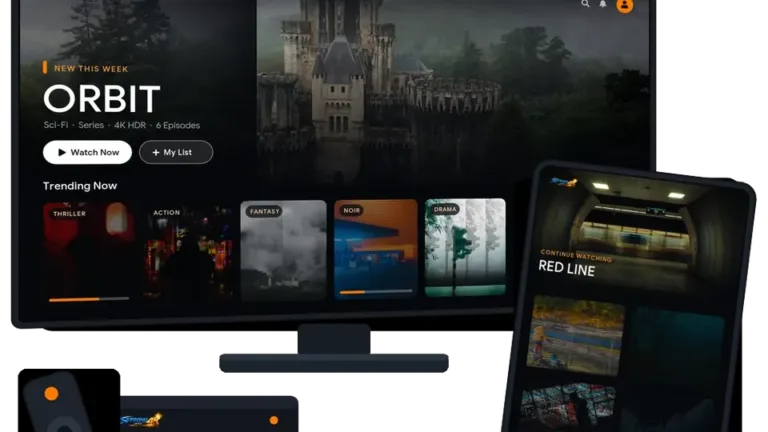 Setup guideSetting up your subscription on iPhone, iPad and Apple TV — a step-by-step guide
 Family guideFamily viewing: kids’ lists, a PIN lock, and channels organised for everyone at home
 Travel guideWatching while travelling: phone, mobile data and hotel Wi-Fi without surprises