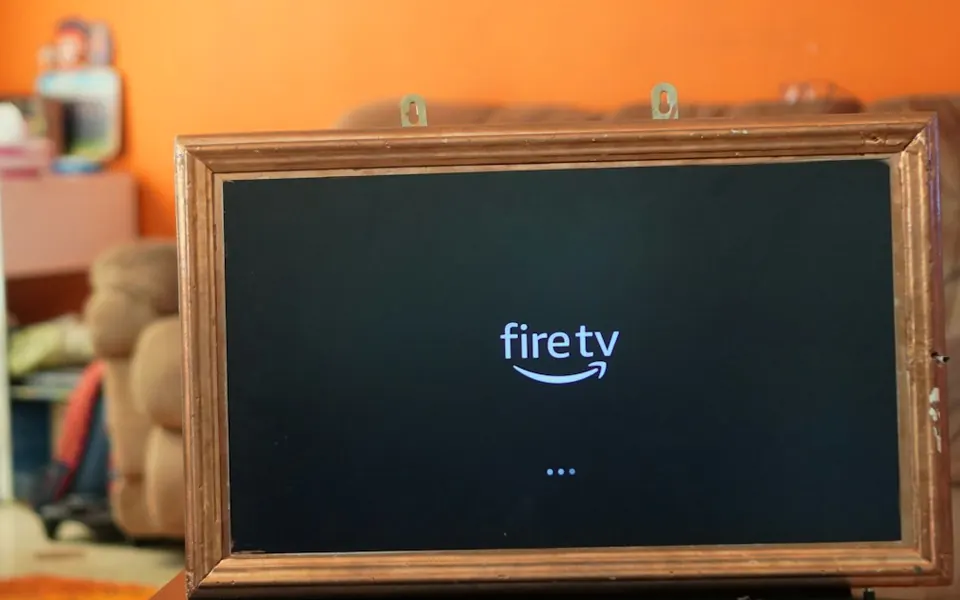
Setting up your subscription on a Fire TV Stick — install through Downloader in 6 steps
The Fire TV Stick is the easiest way to turn any TV into a full smart screen, and the official TV Strong 4K apps install on it with a short code through the Downloader app. This guide covers every step as it appears on screen, including the “hidden” option on newer versions.
Before you start
Server URL, username and password (Xtream Codes) or an M3U link — sent after payment. Paste them from our message instead of typing character by character.
15 Mbps for high definition and 30 Mbps for 4K, measured on the device itself. An Ethernet cable or 5GHz Wi-Fi gives the steadiest result.
The Fire TV Stick is plugged into HDMI and power, registered to an Amazon account, and connected to Wi-Fi.
The steps
- Install the Downloader app
From the home screen choose the search icon and type Downloader, then install the app (free from the Amazon store).
Official TV Strong 4K apps — Downloader codesApps page — current codes and detailsStrong TV 4K9246532Fast 4K Player9310614K Player VIP292384 - Allow installing from unknown sources
Settings › My Fire TV › Developer Options › Install unknown apps › enable Downloader. If “Developer Options” is not shown: Settings › My Fire TV › About › press the device name 7 times, then go back to find it.
Enable it for Downloader alone. - Enter the code in Downloader
Open Downloader, accept the permissions the first time, then type the code in the address box and press Go.
- Install the app
When the download completes the install screen appears — press Install, then Open. You can delete the downloaded file when Downloader asks, to save space.
- Enter your subscription details
Choose Xtream Codes and enter the server URL, username and password exactly. The Fire TV app on your phone gives you a full keyboard — faster than the remote.
- Pin the app to the first row and test
Long-press the app icon › Move to front. Play two channels from two different categories, and set the quality.
Also supported players
If you prefer a player from your device’s store instead of our official apps: install one of these players, send us the MAC it shows on first open, and we activate your subscription on it. These are third-party players; their availability depends on your device’s system and your country, and we do not own them nor does our plan include their licences.
No Fire TV Stick yet?
The same method works on any Android box or Android TV with the Downloader app from Google Play. See the Android TV guide.
After the first channel plays
Start on automatic or HD and raise it to 4K once the connection proves steady at peak time.
Add the channels you actually watch to favourites so they are one press away, and hide categories you do not need.
Cinema mode for films and Standard for matches, and reduce motion smoothing if fast shots look unnatural.
Common problems on this device
Settings › My Fire TV › About › press the device name (e.g. Fire TV Stick) 7 times in a row; Developer Options appears in the previous menu.
Install unknown apps is not enabled for Downloader. Go back, enable it for Downloader, and try again.
Remove apps you do not use (Settings › Applications), restart the device by unplugging it, and make sure it is ventilated behind the TV.
Use the 5GHz band and move the device closer to the router, or the Fire TV Ethernet adapter, and drop the quality one step for a while.
Frequently asked questions
Which code do I enter in Downloader?
The codes for the official TV Strong 4K apps are shown in this guide and on the apps page. If they change, message us on WhatsApp.
Does it work on the Fire TV Stick Lite and Fire TV Cube?
Yes, the same steps on every Fire TV device running Fire OS.
The app opens but there are no channels — why?
Usually an extra space or a missing character in the server URL or username, or an expired subscription. Paste the details from our message again; if it persists, message us with the app and device.
Can I control it from my phone?
Yes, the Fire TV app on your phone works as a remote with a keyboard — the easiest way to enter the server URL.
How many devices can I use?
We help you set up on two devices, with playback on one device at a time. If you need more than one screen, ask before ordering.
Menu and setting names differ slightly between versions and models, and app availability in the stores varies by country. Picture quality and stability depend on the source, your device and your connection speed. If you cannot find an option mentioned here, message us on WhatsApp with your model.
Ready to set up on Fire TV Stick?
Pick the subscription length that suits you and we set it up with you step by step — or ask first.
Viewing guides for this device
 Viewing guideWatching the Saudi Pro League on your screen in high quality — a match-night guide
 Viewing guideWatching the Egyptian Premier League on a Smart TV — a match-night guide
 Family guideFamily viewing: kids’ lists, a PIN lock, and channels organised for everyone at home
 Viewing guideWatching the Premier League in 4K on your screen — a match-night guide